What System Data actually means
Apple describes System Data, called Other on some older macOS versions, as a general category for Apple and third-party files that do not belong to a more specific category. It can include logs, caches, virtual-memory files, temporary files, fonts, app support files, plug-ins, and other runtime resources. The category changes with the state of the Mac and is managed by macOS.
That means a 100 GB System Data reading does not identify one 100 GB folder, and it does not prove that 100 GB can be deleted. Storage categories, Finder folder sizes, APFS available space, and third-party scanner totals can use different accounting rules. The useful goal is enough available space for the task at hand, not forcing the category to zero.
Swipe the table sideways to see every column →
| What you see | Best first action | Do not start with |
|---|---|---|
| Available space is healthy; System Data only looks large | Record it and check whether it continues growing | Deleting protected system folders to reduce a label |
| Install or copy fails for lack of space | Remove known large files and redownloadable media | A broad cleanup command copied from a forum |
| macOS was just updated or data was migrated | Let indexing and syncing finish, then restart and recheck | Deleting several categories while totals are changing |
| Xcode or Simulators are installed | Inspect developer components and runtime versions | Dragging the entire AssetsV2 folder to Trash |
| A scanner reports large Time Machine snapshots | Check macOS available space and backup status | Treating purgeable snapshot space as permanently unavailable |
How much System Data is normal? Is 100 GB or 300 GB automatically wrong?
Apple does not publish one normal System Data number for every Mac. The category changes with disk capacity, installed apps, virtual memory, caches, iPhone backups, Time Machine snapshots, Xcode runtimes, and current work. A fixed 20 GB, 100 GB, or percentage threshold is therefore not a reliable diagnosis.
A 100 GB or 300 GB reading deserves investigation, but the number alone is not permission to delete files. Ask whether available space stays near zero, downloads or installations fail, the category keeps growing without a matching task, and a recognizable backup, developer component, or user file explains the change. A 1 TB Mac with ample available space is a different situation from a 256 GB Mac with only a few gigabytes left.
- Record total capacity, available space, and System Data together.
- Measure again after a normal restart or another work cycle to separate fluctuation from growth.
- Match growth to a macOS update, photo sync, iPhone backup, Xcode download, or another known event.
- Remove something only after identifying its source and recovery path.
Measured on a Mac mini: System Data was still calculating
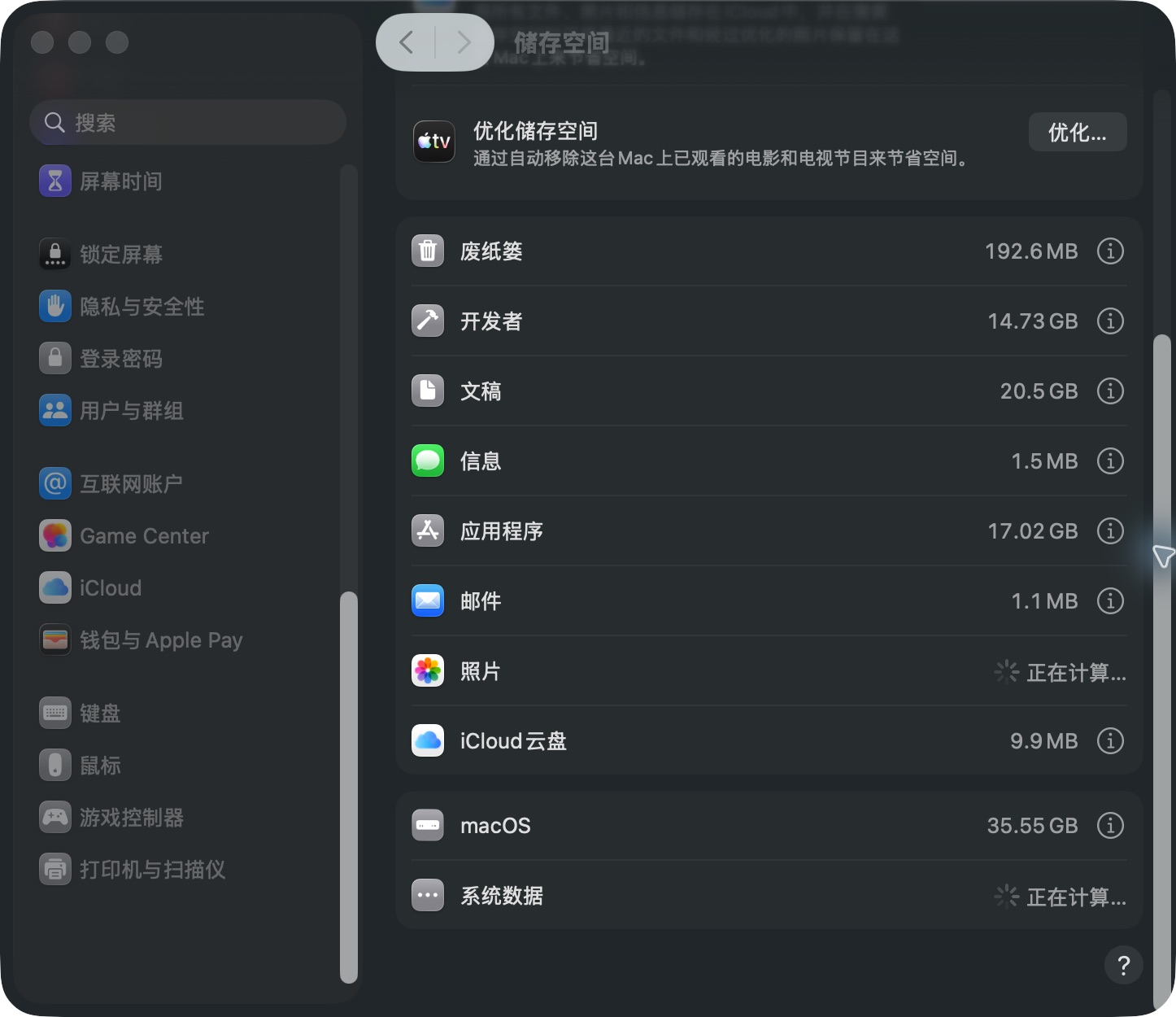
On October 29, 2026, we checked one Mac mini running macOS 26.4.1 and Xcode 26.2 without deleting anything. In System Settings → General → Storage, both Photos and System Data still said Calculating. The screenshot records that unfinished state, not a final System Data size or a disk error. The interface language was Chinese; the status beside System Data means Calculating.
A separate read-only df -k / /System/Volumes/Data check reported 25,302,644 KiB available, about 24.13 GiB, on both the root and Data rows. Their usage percentages differed (33% and 88%), so the root percentage alone would misstate this Mac's overall storage situation. The screen and command were not captured at the same instant, and background writes continued; their difference cannot be called purgeable or wasted space. The AssetsV2 and Simulator measurements from this same inventory are explained in the linked AssetsV2 guide. No files or runtimes were removed, and no reclaimed capacity was measured.
Start with a read-only storage inventory
On macOS Ventura 13 or later, open Apple menu → System Settings → General → Storage. Wait for the categories to calculate. Record the total available space, System Data, and the largest categories. Open the detail controls Apple provides for Applications, Documents, Messages, Music Creation, Podcasts, Trash, and TV before looking for hidden folders.
Write down whether you recently installed macOS, migrated a user, synchronized a large Photos library, backed up an iPhone, installed Xcode components, or copied a project. These events provide a stronger lead than the System Data number alone. Do not delete anything during the first pass, because delayed category updates make it difficult to attribute a change.
- Take a screenshot of Storage and record available space and the System Data reading.
- Open the built-in detail views and list the five largest recognizable items.
- Check Downloads, large media, old iPhone backups, unused apps, and Trash.
- Confirm that important documents and project files have a readable backup.
If Mac Storage is stuck calculating
The Storage panel has to classify files and can take longer after a macOS update, migration, backup restore, or large photo-library synchronization. Keep the Mac on power and let active updates, Spotlight indexing, and cloud synchronization finish. A gray or changing category is not evidence that all of it is disposable System Data.
If the panel stays on Calculating, restart normally and reopen System Settings → General → Storage. Cross-check the startup disk's total and available space with Finder Get Info or Disk Utility. If the panel still cannot finish, totals are impossible, or Disk Utility reports an error, verify a backup and follow Apple's disk First Aid guidance or contact support instead of continuing to delete files.
- Note the panel state and check whether updates, Photos, iCloud Drive, or a file migration are active.
- Keep the Mac on power, let current work finish, and restart once.
- Compare total and available capacity for the same startup disk in Finder or Disk Utility.
- Stop deleting and back up first if a disk error or impossible capacity remains.
Clean recognizable files before hidden system locations
Apple's supported cleanup path starts with files and media you own: Downloads, streamed media that can be downloaded again, unused apps, old iPhone or iPad backups, deleted-user data, large mail items, and Trash. Moving a file to Trash does not make its space available until Trash is emptied.
Delete in small, attributable groups. Verify that an external copy opens before removing the original. If a file is synchronized through iCloud Drive or Photos, understand whether deleting it will propagate to other devices. Buying more iCloud capacity also does not increase the physical capacity of the Mac's startup disk.
If iPhone backups use the space, verify recovery value before deleting
A local iPhone or iPad backup can use several or many gigabytes and may appear within System Data or another broad storage category. Identify backups through Finder's Manage Backups view or the corresponding Apple Devices workflow. Device name, completion date, and the encrypted-backup lock are more useful evidence than folder size. Do not remove scattered files from MobileSync: a backup is a coordinated set of files, and a partial deletion can leave an unusable restore source.
Before removal, ask whether this is the newest and only backup for the current device, whether it is being kept for an update or migration, whether a complete copy exists on another disk, and whether the encryption password is available. Remove a confirmed obsolete or duplicate backup as one entry through the supported interface. If you archive a backup to external storage, copy its entire folder and preserve its internal structure; do not leave the duplicate inside the original backup directory.
Swipe the table sideways to see every column →
| Backup state | Safer action | Verify first |
|---|---|---|
| Newest and only computer backup for the current device | Keep it | Device, date, encryption state, and password |
| Old-device backup that may still be needed | Archive the complete backup folder | Readable external copy, complete size, and recorded location |
| Confirmed obsolete or duplicate backup | Delete the complete entry in Manage Backups | A separate verified backup exists for the current device |
| Unknown MobileSync folder | Do not manually delete files | Identify the backup in Finder or Apple Devices first |
Caches and logs are not permission to empty Library
Apple says starting in safe mode clears certain system caches that are recreated as needed and may temporarily provide enough room for a task such as a macOS update. Safe mode is also useful for checking whether startup software contributes to a problem. It is not a promise that System Data will stay at a particular number.
Do not recursively empty /Library, ~/Library/Caches, /private/var, or log directories. Different apps use caches, databases, and support files differently, and a temporary-looking name is not proof that the file is disposable. Use an app's own remove-download, cache, uninstall, or reset workflow when one specific app is the source.
Time Machine local snapshots usually are not missing space
Time Machine can keep local snapshots when the backup disk is unavailable. Apple says macOS counts their space as available and automatically removes snapshots as they age or when another task needs the space. A scanner may display the physical blocks, while macOS already treats them as reclaimable.
Reconnect the normal backup disk and confirm that Time Machine completes a current backup. Do not disable backups permanently or mass-delete APFS snapshots merely to make a scanner number smaller. If you intentionally need snapshots removed, follow Apple's documented Time Machine settings process and turn automatic backups back on afterward.
If Xcode or AssetsV2 is large, manage the component
Xcode Simulator runtimes and additional platform components can consume tens of gigabytes and may appear under System Data or developer-related storage. Measure /System/Library/AssetsV2 and list registered runtimes before deciding that they explain the total. AssetsV2 can also contain software-update, voice, font, translation, and other macOS-managed assets.
For a confirmed unused Simulator Runtime, use Xcode → Settings → Components or a targeted simctl runtime command. Do not delete the whole AssetsV2 directory, edit MobileAsset metadata, or disable System Integrity Protection to force removal. The related AssetsV2 guide provides the read-only commands, dry-run approach, and verification steps for that specific case.
Swipe the table sideways to see every column →
| Mac mini measurement | Observed value | What it proves |
|---|---|---|
| /System/Library/AssetsV2 | 42 GB by du | The managed asset directory was large on this Mac |
| Installed iOS runtimes | 4 entries in Xcode Components | Four specific components could be evaluated individually |
| Registered runtime images | 31.9 GB total in simctl | Simulator runtimes explained a substantial share, not necessarily every byte |
| Deletion result | No runtime deleted | This was a read-only inventory, not a reclaimed-space claim |
What about purgeable space and APFS reporting?
Disk Utility says available space can include both free and purgeable space. Purgeable files are resources macOS can remove when needed; they are not a folder the user can manually empty. This is one reason a folder-summing tool and the Storage panel may not appear to agree.
Use the same measurement before and after each change. For a practical capacity problem, the relevant test is whether the Mac can now complete the download, installation, or copy and whether available space increased. Do not add category totals from tools with different APFS accounting and call the result missing disk space.
Verify the result and know when to stop
After one cleanup category, empty Trash where appropriate, restart or let the Storage panel recalculate, and record available space again. System Data can grow later because caches and virtual memory are created as the Mac works. A stable, usable amount of free space is a better result than the lowest possible category number.
- Open several important documents, Photos libraries, and projects to confirm they still work.
- Verify that the external or Time Machine backup is readable and has a recent completion time.
- Compare available disk space using the same panel or command used before cleanup.
- If System Data grows rapidly again, record the time and the apps or jobs running then.
- Stop deleting and seek Apple or administrator help for disk errors, startup failures, or unknown managed files.